Keeping a card number out of iPhone screen recordings
iOS has no off switch for screen capture, so I borrowed a trick from the password field: how it works, what broke on a real iPhone, and where it stops.
- iOS
- Flutter
- privacy
- screenshot_shield
Open a banking app, start a screen recording and scroll to your balance. In many apps, every digit ends up in the video. That video might then go to a support agent, a group chat, or a stranger who asked you to "just share your screen".
Phones copy the screen in more ways than people realise: screenshots, screen recordings, AirPlay mirroring, screen sharing on a call, and the snapshot iOS takes for the app switcher. Each one captures whatever is visible at that moment.
Apps that care usually reach for a blunt tool and hide the whole screen. I wanted something finer: keep the card number out of the recording while the rest of the screen stays visible. This post explains how I built that for iPhone in screenshot_shield, my open-source plugin for Flutter (Google's toolkit for building iPhone and Android apps from one codebase), and why it was much harder than it sounds.
iOS will tell you, but it won't stop it
Apple gives apps two signals and no off switch.
- A screenshot notice. iOS tells an app after the user takes a screenshot. By then the screenshot has already been taken.
- A "being captured" flag. An app can ask whether its screen is currently being recorded, mirrored or shared, and get told when that changes. On recent iOS versions this is reported per window, which matters on iPads with several apps on screen.
What iOS does not offer is a public way to say "leave this out of the capture". Android has one: a single window flag blanks screenshots and recordings of an app. On iPhone, an app that wants the same result has to find another way.
The trick hiding in every password field
iOS already hides one thing from captures: what you type into a password field. Start a recording while you log in somewhere, and the password field comes out blank in the video.
Under the hood, a password field draws its text into a private drawing surface (a "layer") that the system marks as off-limits to capture. Developers noticed something useful about that layer: anything placed inside it is left out of captures too, not just the password.
That is the whole trick, and it is not an official feature. Apple doesn't document it, so it can change in any iOS release. Everything below builds on it, which is why I test it on a real iPhone and the plugin's docs warn about it up front.
Protecting a whole screen
My first attempt placed an invisible password field next to the app's content. Screenshots still showed everything. The protected layer only hides what is inside it, and the app was sitting beside it.
The version that works goes one step further:
- Create an invisible password field the size of the window.
- Find the protected layer it draws into.
- Move the app's entire drawing inside that layer.
On screen, nothing changes: the app looks and behaves exactly as before. In a screenshot, a recording or the app-switcher snapshot, the app is simply missing, so the capture comes out blank.
Why hiding one card is much harder
Two facts get in the way.
First, Flutter doesn't build its screens out of separate iOS pieces. It paints the entire interface into one picture, so the card is just some pixels in that picture, and there is no separate piece to move into the protected layer.
Second, the protected layer doesn't black things out. It is left out of the capture. A see-through protected layer placed over the card hides nothing: the recording simply sees through it to the live card underneath.
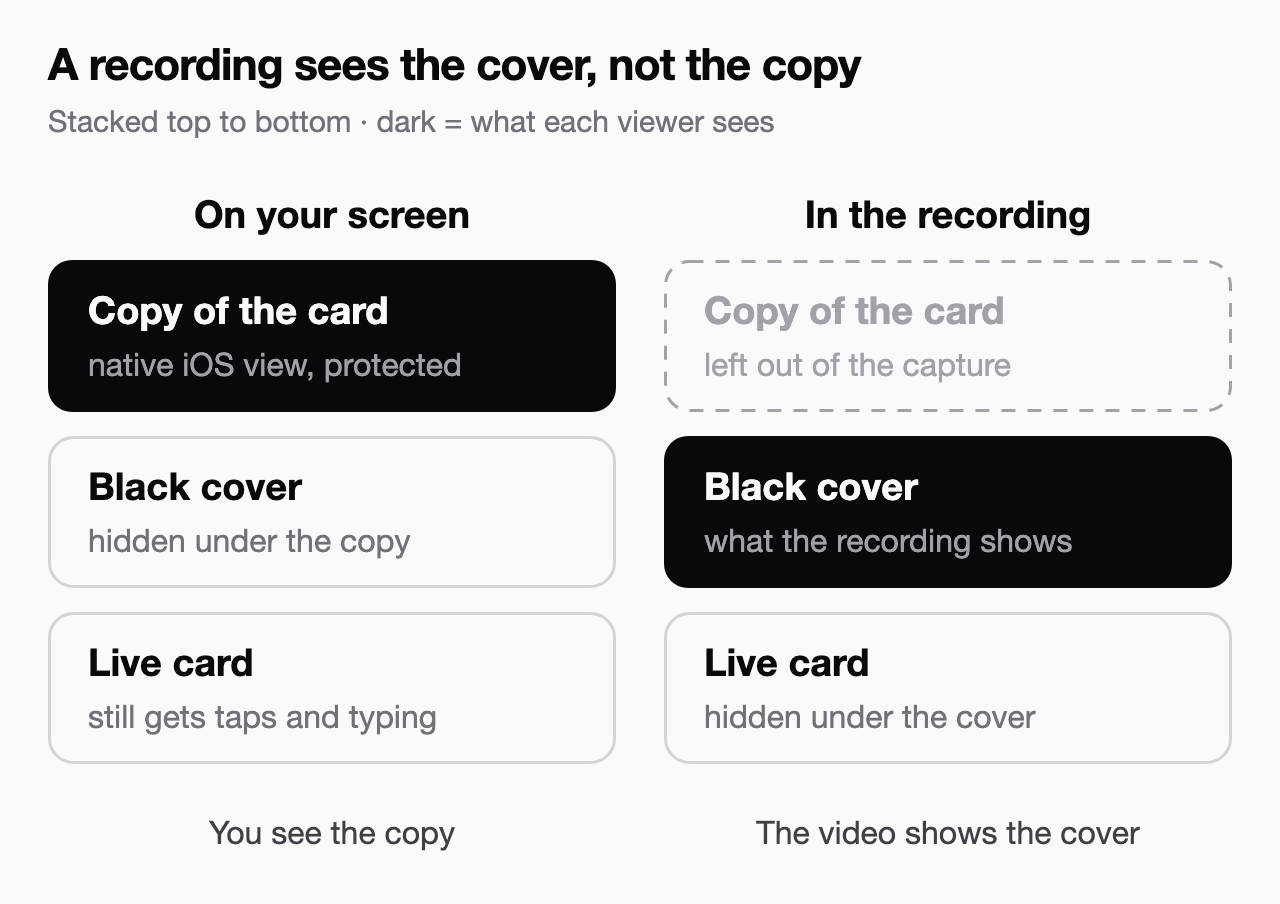
So the plugin shows a copy of the card instead. While a recording is running:
- The plugin takes a picture of just the card, with nothing on top of it, and takes a fresh one whenever the card changes (at most about 30 times a second).
- It shows that picture in a native iOS view placed exactly over the card. Unlike Flutter's single picture, a native view is a separate piece that iOS manages itself, so it can be moved into a protected layer.
- Between the live card and the copy, Flutter paints a black cover (or any other cover the app chooses).
On screen, you see the copy. It looks just like the card, though as a picture it can trail the live one by a moment. Taps and typing still reach the live card, so it keeps working normally. The recording leaves the copy out and sees only the black cover.
By default, when nobody is recording, none of this exists: no copies, no extra views, no battery cost. The protection switches on only when a recording, mirroring or screen share starts, or when the app goes to the background, so the snapshot iOS takes for the app switcher is covered too. Screenshots are different: iOS gives no warning before one, so by default a screenshot still shows the card (more on that below).
Four surprises from a real iPhone
The iPhone simulator on a Mac can't record its own screen, so most of these only showed up on a device.
Recording detection went quiet. On a current iPhone, the app often wasn't told that a recording had started. The old screen-wide signal no longer fired reliably, because iOS now tracks capture per window. The fix was to watch the window's own capture state directly.
A crash the moment protection switched on. iOS sometimes swaps the protected layer for a fresh one. My code stopped holding on to the old one while the copy was still inside it. Nothing else was holding on to it either, so iOS freed it from memory, and the next time the copy moved, the app reached for something that no longer existed and crashed. Now the plugin keeps the old layer until the copy has moved out, and only lets go a moment later.
A copy that froze. To save battery, a timer limits the copy to about 30 refreshes a second. Switching protection off cancelled that timer, but the plugin kept a note saying "a refresh is coming". When protection switched back on, it waited for that refresh, and it never came. On screen, the copy froze while the live card kept animating underneath. Opening Control Center to start a recording triggers exactly that off-and-on, which is why it only appeared during real use. An automated test now replays that sequence.
A gap as protection kicks in. When a recording starts, the first copy takes a split second to arrive. Until it does, nothing covers the live card, so the video can catch it. iOS also reports a recording slightly after it has begun, which widens that gap. Neither delay can be removed entirely, so for content that must never appear, the plugin offers an "always-on" mode that keeps the copy in place before any recording starts.
The common lesson: capture protection has to be tested on real hardware, doubly so when it rests on undocumented behaviour. Automated tests now guard the Flutter side (the frozen copy, for example), but the iOS side (the crash and the recording detection) still gets checked by hand on a real iPhone.
What this can't do
It is worth being plain about the limits.
- It relies on undocumented behaviour. A future iOS release could change how password fields are drawn, and the protection would stop working until the plugin finds a workaround, if one exists.
- App Store review may ask about it. Apple can push back on apps that rely on undocumented behaviour, which can hold up a release. Apps that use it should be ready to explain why, and have a plan B that only detects captures, such as warning the user that the screen is being recorded.
- Hiding one card from screenshots needs the always-on mode. iOS gives no warning before a screenshot, so by default a screenshot still shows the card. Only the always-on mode covers screenshots, and it keeps the copy running all the time.
- There is a short gap when a recording starts. iOS reports it a moment late and the first copy takes a split second to arrive, so use the always-on mode for anything that must never appear, even briefly.
- The keyboard needs its own setting. iOS draws the keyboard in its own window, so hiding the card doesn't hide it: if someone types into the card during a recording, the video can show the keys being tapped. Turn on the plugin's keyboard protection, which uses the same trick, to hide it too.
- Nothing stops a second phone. Anyone can point another camera at the screen. Capture protection blocks the easy way to grab the screen; it doesn't make content secret.
Used with those limits in mind, it is a useful privacy safeguard, not a guarantee.
Try it
All of this lives in screenshot_shield, an open-source Flutter plugin. It also blocks captures of whole screens on Android, iOS and Windows, detects screenshots and recordings, and hides the app's content in the app switcher. Hiding a single part of the screen works on iPhone and iPad.
The code is on GitHub. If you build something sensitive with it, or find an iOS version where the trick stops working, I'd like to hear about it.
And if you don't build apps at all, try the test from the top of this post: open your banking app, start a screen recording, and see what ends up in the video.